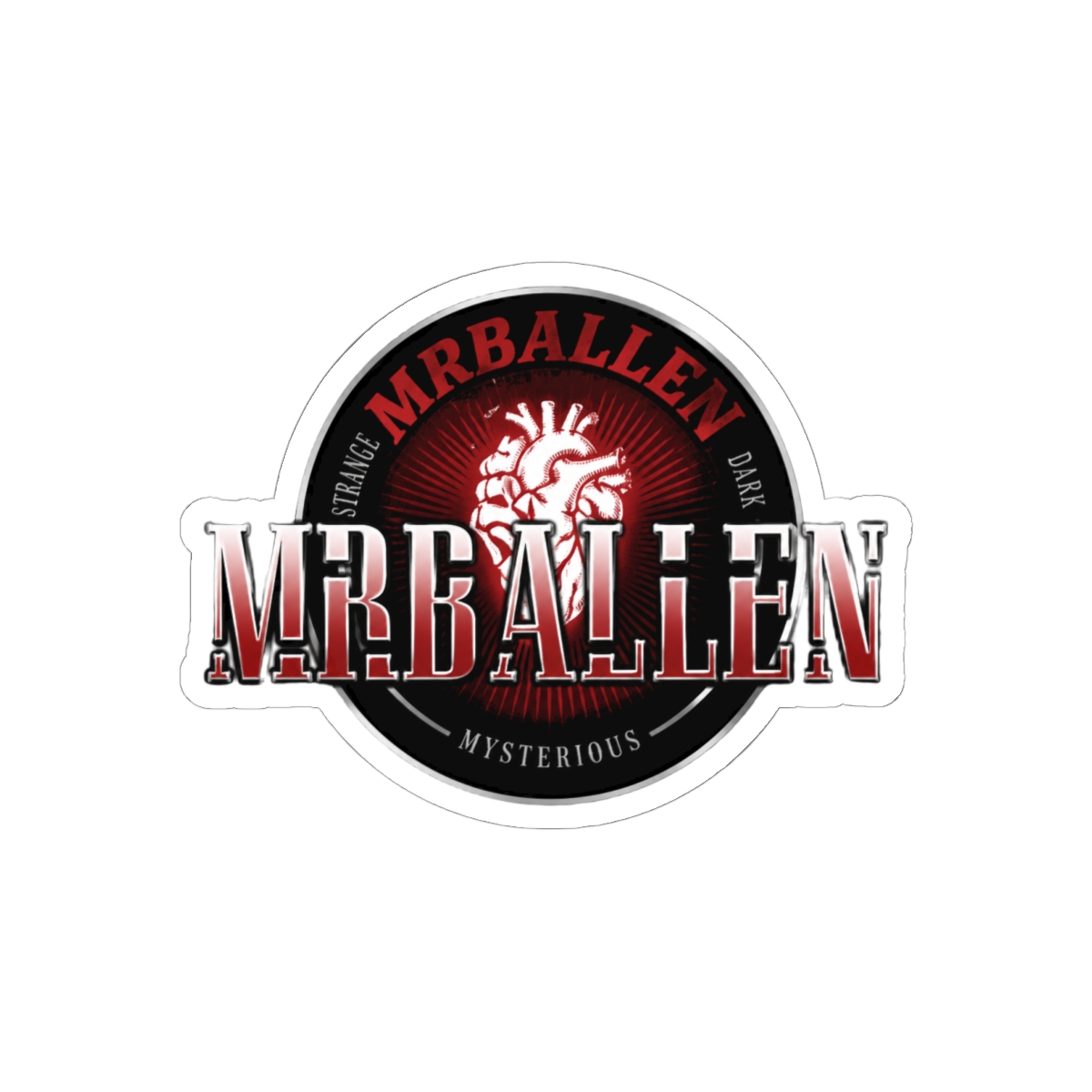
Looking for mrballen laptop stickers that can survive a full semester of lectures, coffee spills, and daily commutes? You're not alone. Every fall, my customers ask the same thing: which designs hold up, and where should they go on a laptop? As someone who designs fan merch for a living, I've tested dozens of sticker materials and layouts. Here's what works, what doesn't, and how to build a true crime setup that feels intentionally yours.
Prepping for the fall 2026 semester or just refreshing your current setup? These tips will keep your stickers looking sharp through finals week. On a MacBook Air or a rugged ThinkPad, the right stickers turn a plain machine into a statement. For fans of strange, dark, and mysterious stories, a curated collection is a quiet signal of shared taste. You'll spot a fellow enthusiast across a crowded lecture hall and know exactly what they're into.
Why MrBallen Stickers Are the Ultimate Laptop Accessory
Your laptop is one of the most personal items you carry. It holds your notes, your projects, your midnight internet spirals. Adding stickers is the easiest way to make it feel like yours. A MrBallen-inspired design works especially well because the aesthetic leans into shadow, fog, and creepy woods - a perfect match for the mystery-loving brain.
There's a social layer too. Spot a stranger with a "strange, dark, and mysterious" decal and you instantly share a favorite episode or a theory about that lonesome fog. It's an icebreaker that requires zero small talk.
It's More Than Decor
From a materials standpoint, these stickers are built for daily abuse. Most print-on-demand stickers use a thick vinyl film with a clear laminate overlay. I've watched a 3-inch MrBallen sticker survive a semester of sliding in and out of a backpack, pick up a few scratches, and still look sharp. That durability comes from the vinyl layer, not luck.
Here's why vinyl is the right choice for school:
- Vinyl flexes around rounded laptop corners without cracking.
- Pressure-sensitive adhesive grips bare aluminum and plastic firmly.
- A UV-resistant top coat keeps colors from washing out in sunlight.
- Die-cut edges resist peeling when the laptop rubs against books.
The Best MrBallen Sticker Designs to Start Your Collection
Not sure which designs to pick? The MrBallen Store's curated collection leans heavily on dark, atmospheric artwork. You'll find typography stickers with the show's signature phrase, plus graphic pieces featuring silhouetted figures, foggy forests, and abandoned buildings. A mix of both gives you texture and personality.
If you're new to this, start small. Buy three to five stickers in different formats: a text sticker, a logo-style mark, and one detailed scene. That combo gives you a balanced layout without feeling cluttered.
Iconic Motifs and Fan Favorites
Some designs are the perennial headliners. Phrase stickers are the most recognizable, and they're a safe bet for a first order. Minimal line art also works well on smaller laptops, where a densely detailed scene can overwhelm the lid. I've seen customers pair a small "MrBallen" wordmark with a larger landscape sticker and it always reads clean.
A few directions to consider:
- Minimal text stickers for a sharp, modern look
- Dark landscape scenes with grainy texture
- Subtle inside jokes only true fans will recognize
- Glow-in-the-dark or holographic finishes for extra flair
Sizing and Material Choices
Sticker sizes usually range from 2-inch mini decals to 6-inch statement pieces. For a 13-inch laptop, I recommend a 3-inch hero sticker surrounded by 2-inch accents. On a 15-inch machine, you can push the hero to 5 inches without swallowing the lid. A typical 3-inch die-cut runs about $7, while a larger scene might land near $12.
Finish matters too. Glossy stickers pop on dark laptops and reflect light in hallways. Matte finishes keep things understated and hide fingerprints better. Holographic designs look amazing but can make text tricky to read. In my experience, matte is the best daily driver if you spend hours typing in bright lecture rooms.
How to Arrange Laptop Stickers for a Clean True Crime Look
The most common mistake I see is slapping decals on in random order. A chaotic layout looks thrown together. A planned layout looks like a designer touched it. Think of the lid as a canvas and your stickers as clues leading to one focal point.
Build a Focal Point
Choose a hero sticker before you place anything else. Put it slightly off-center, then arrange smaller stickers around it like supporting characters. Don't cover the hero, and don't line everything up in a strict grid. Organic clusters with varied spacing always look more intentional.
Balance and Spacing
Odd numbers of stickers tend to read as curated. A cluster of three or five feels composed, while pairs and quads look symmetrical and stiff. Leave a little blank space around the cluster so the design can breathe.
Follow this order when you apply:
1. Wipe the lid with a microfiber cloth and isopropyl alcohol to remove skin oils. 2. Lay stickers on the lid without peeling the backing to preview the layout. 3. Peel from one corner and press from the center outward to push out air bubbles. 4. Press the edges for 10 seconds, especially around die-cut curves.
Also keep the webcam and any ventilation grilles clear. On a MacBook, that means staying away from the hinge line and the notch. Blocking airflow can make your machine run hot, and no sticker is worth a temperature spike.
Keeping Your Stickers Flawless: Care Tips for Everyday Use
The right routine extends the life of your stickers. I tell people to treat their laptop as a daily carry item, not a museum piece - but avoid extreme heat and constant direct sun. Heat softens adhesive, and UV rays fade ink over time.
What Makes Stickers Last
Vinyl handles moisture well. A spilled iced coffee or a sudden rain shower won't destroy a quality sticker, as long as you dry it off. Prolonged submersion is the real enemy. If you're caught in a thunderstorm, tuck the laptop under your arm or inside a bag.
If you take public transit, consider a laptop sleeve. The inside of a crowded bag is where stickers face the most friction. A sleeve with a soft interior costs about $20 and protects both your device and your decals.
Quick care checklist:
- Keep the laptop out of direct sunlight for long stretches.
- Wipe off spills within a few minutes.
- Store the laptop in a soft sleeve when it rides in a backpack.
- Don't use harsh solvents or alcohol on the sticker's printed surface.
Removing and Replacing Stickers
Eventually you'll want to swap a design. Go slow. Heat the sticker with a hairdryer on low for a few seconds, then peel from a corner at a low angle. If adhesive residue remains, dab it with rubbing alcohol on a cotton swab. Avoid metal scrapers - they can scratch anodized aluminum.
Do the same trick if a corner starts to lift. Warm the edge, press it down with your thumb, and the adhesive will re-grip. This has saved more than a few stickers in my own collection.
Frequently Asked Questions
Are MrBallen stickers waterproof?
Most are water-resistant, not fully waterproof. The vinyl layer and laminate protect against spills, light rain, and sweaty commutes, but prolonged submersion is risky. If you get caught in a downpour, dry the laptop quickly and avoid letting water pool around the sticker edges. For everyday school use, a coffee spill is nothing to worry about.
Will stickers damage my laptop's finish?
Quality vinyl uses a pressure-sensitive adhesive that removes cleanly without marring aluminum or plastic. The risk comes from heat and long exposure times. To be safe, remove stickers with a hairdryer on low heat, then wipe away any residue with rubbing alcohol. Test on a hidden corner first if you're extra cautious.
What is the best sticker size for a 13-inch laptop?
A 3-inch hero sticker is the sweet spot for a 13-inch lid. Add 2-inch accent stickers around it to create a layered look. If you have a 15-inch or 16-inch machine, a 5-inch centerpiece works well. Anything larger can overpower the lid and make it look cluttered.
How do I keep sticker corners from peeling?
Die-cut vinyl corners stay flat if you press them firmly after application. Run your thumb along the perimeter for ten seconds. Avoid tugging the laptop out of a tight sleeve by the lid, because that friction catches the edges. If a corner lifts, heat it briefly with a hairdryer and press it down.
Do I need to be a design expert to arrange stickers?
Not at all. Start with one well-placed hero sticker, then build around it. Use the mirror test: lay decals on the lid without removing the backing, step back, and adjust until it looks right. Trust your eye, leave breathing room, and don't overcrowd. Five stickers max is a safe rule for most laptops.
Key Takeaways
- Start with a mix of text and image stickers to create visual texture.
- Build your layout around one hero sticker and keep the cluster to three to five decals.
- Vinyl with UV-resistant coating holds up through a semester and beyond.
- Clean the lid, use the hairdryer trick, and always keep vents clear.
- Refresh your setup whenever the mood strikes - swapping is part of the fun.